In order to find and define duplicates, a geometry analysis must be carried out on the assembly. To do this, run the “Find and Unify” command, which is located under a separate tab.

Upon running the command, the geometry is analysed and compared, and a dialog presents a list of components that are geometrically identical. For example, one of the products available in the installation samples is a reception fragment (Bended Counter.iam), which consists of several parts.
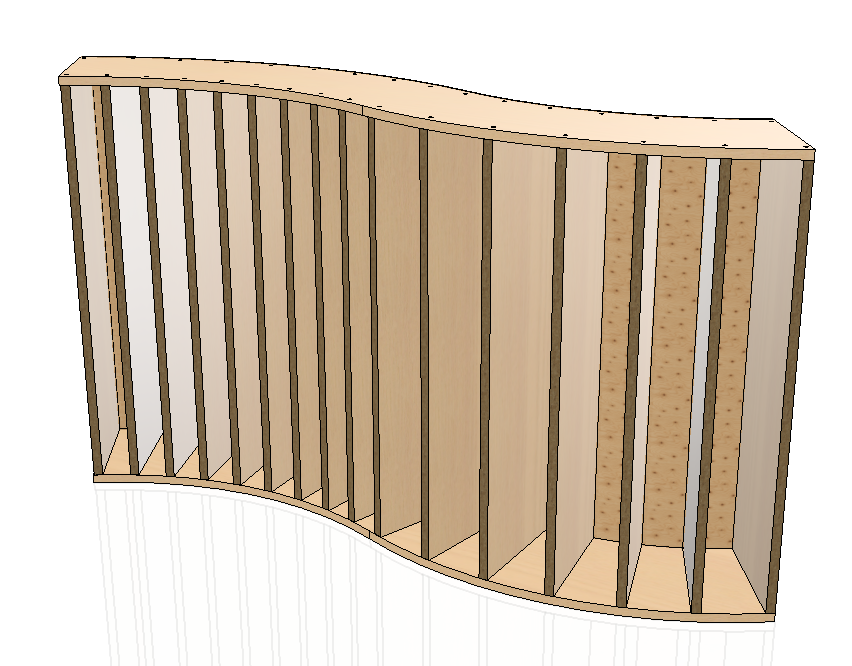
The duplicate search dialog for this Assembly with the obtained values will look as follows.
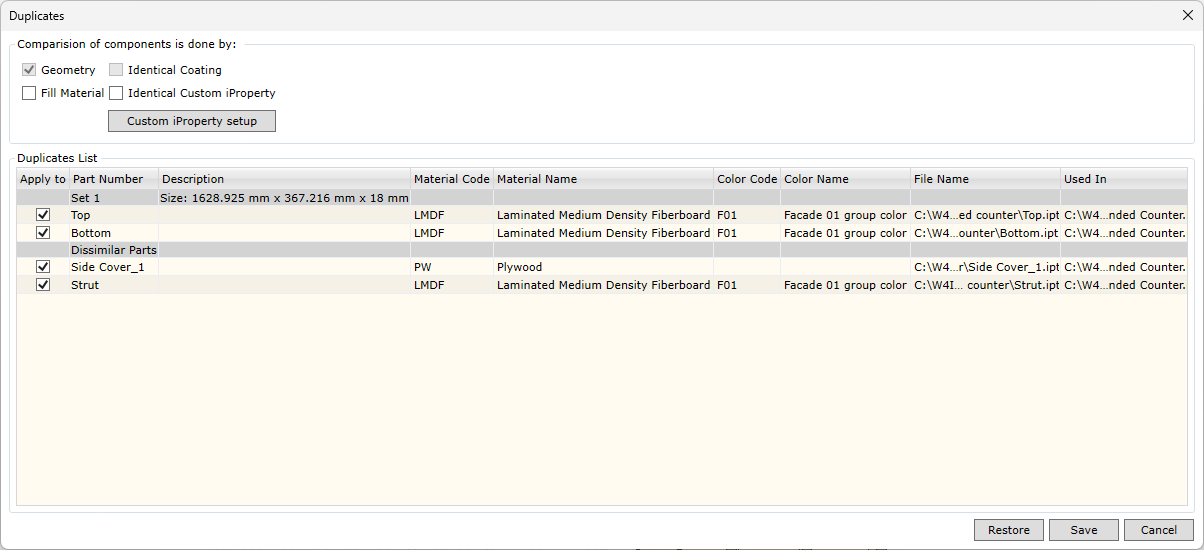
Upon running the command, after the analysis, the dialog shows that the left and right legs are identical, and they are added to Set 1. At the same time, as more similar parts are found, they will be placed in other sets accordingly.
Comparison criteria.
Geometry |
The search criterion that cannot be ignored is geometry. All geometries of Assembly Parts are compared and based on the result it is determined whether the parts are identical in shape. |
Fill Material |
Fill Material comparison criterion. It can be disabled or enabled depending on the search query. If this criterion is enabled, Fill Material comparison is also included. |
Identical Coating |
Cover comparison criterion. It can be disabled or enabled depending on the search query. If this criterion is enabled, Cover material comparison is also included. When searching by Covers, their position is also considered. For example, if one side of a part is painted, the same side is compared in the other part. In other words, not only the Cover material matters, but also its position on the part. It is important to note that this criterion can only be compared when Fill Material comparison is enabled. |
Identical Custom iProperty |
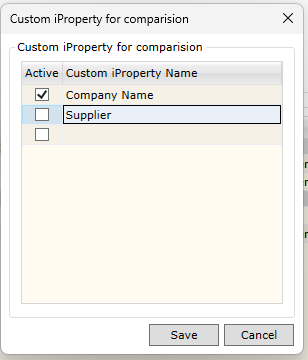
Custom iProperty comparison criterion. If it is enabled, the user can define which Custom iProperties are included in the comparison query, for example:
|
Key command tools:
Direct change of iProperty
|
The user can directly modify the Part Number and Description fields of identical components. For example, identical parts can be unified, which in turn allows the BOM generator to treat them as identical parts. To do this, the file name must be disabled as a component distinguishing feature in the BOM generator. This can be done by adjusting the “Components are same if” option in the general system settings – BOM generator settings.
|
Contextual Menu
|
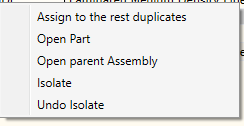
▪Assign to rest duplicates - the iProperties of the selected component from the list are overwritten for the rest of the components of the same set. This allows the user to quickly unify the values of the Part Number and Description fields of all components in the same set. Please note that unification is performed only for components with selected check boxes.
▪Open Part - opens the selected component as a separate document.
▪Open Parent Assembly - the component selected from the list can be located in a sub-assembly, so the whole sub-assembly can be opened as a separate document.
▪Isolate – isolate the component in the Autodesk Inventor Assembly.
▪Undo Isolate – remove the isolation of the selected component in the Autodesk Inventor Assembly.
|
Restore |
If the Save operation has not been performed, the original values of the Part Number and Description fields, as they were when the command started, are restored. |
Save |
Saves all modified values of the Part Number and Description fields in the components. |